Category Archives: Computer Programming

Local RAG with .NET, PostgreSQL, and Ollama: Code Setup (Part 3)

In Part 1 and Part 2, we set up our infrastructure: a PostgreSQL database with pgvector for storing embeddings, and Ollama running the Phi4 model locally. Now we’ll create a .NET application to bring these components together into a working RAG system. We’ll start by setting up our solution structure with proper test projects.

If you’re just joining, you’ll need to follow the steps in Parts 1 and 2 first to get PostgreSQL and Ollama running in Docker.

Let’s start by creating the .NET solution and projects from the command line (we could do this through Visual Studio’s UI, but I prefer keeping my command-line-fu strong).

Creating a new .NET project

Open PowerShell as an administrator. Browse to a directory where you’d like to create your solution – I keep mine in my Git repositories folder. Then run these commands:

First, create the solution

dotnet new sln -n LocalRagConsoleDemo

You might see a prompt about the dev certificate – if so, run:

dotnet dev-certs https --trust

Now create our three projects: the main console app and two test projects

dotnet new console -n LocalRagConsoleDemo
dotnet new nunit -n LocalRagConsoleUnitTests
dotnet new nunit -n LocalRagConsoleIntegrationTests

Finally, add everything to the solution, organizing tests in their own folder

dotnet sln LocalRagConsoleDemo.sln add LocalRagConsoleDemo/LocalRagConsoleDemo.csproj

dotnet sln LocalRagConsoleDemo.sln add LocalRagConsoleUnitTests/LocalRagConsoleUnitTests.csproj --solution-folder "Unit Tests"

dotnet sln LocalRagConsoleDemo.sln add LocalRagConsoleIntegrationTests/LocalRagConsoleIntegrationTests.csproj --solution-folder "Unit Tests"

Now we have a solution set up with proper separation of concerns – a main console project for our RAG application and separate projects for unit and integration tests. In the next section, we’ll add the required NuGet packages and start building our connection to PostgreSQL.

You can verify everything is set up correctly by opening LocalRagConsoleDemo.sln in Visual Studio or your preferred IDE. You should see:

Two test projects organized in a “Unit Tests” solution folder and a main console project.

Adding Dependencies

Navigate to the LocalRagConsoleDemo project folder and add our initial NuGet packages:

dotnet add package Microsoft.Extensions.Http
dotnet add package Newtonsoft.Json

At this point, you should have a working solution structure:

  • A main console project
  • Two test projects in a “Unit Tests” solution folder
  • Basic HTTP and JSON handling capabilities

You can verify the setup by opening LocalRagConsoleDemo.sln in Visual Studio or your preferred IDE.

What’s Next?
I’ll be back soon with a detailed walkthrough of building the RAG application. In the meantime, you can check out the working code at:

https://github.com/jimsowers/LocalRAGConsoleDemo

Happy Coding!
-Jim

Local RAG with .NET, Postgres, and Ollama: Ollama Setup (Part 2)

In Part 1, we set up a PostgreSQL database with pgvector extension in a Docker container (that’s a mouthful of tech terms – sorry!).

Our goal is to build a local RAG (Retrieval-Augmented Generation) application combining Postgres for vector storage with a local AI model. Now, we’ll use Docker to run Ollama, an open-source tool that lets us run AI models locally on our machine.

Step 1: Pulling the Ollama Docker container

You can pull the ollama image in a powershell prompt from docker hub with this command:


 docker pull ollama/ollama

Or, you can use the search bar in docker desktop :

We already should have Docker running with Postgres with pgvector and now we will start the Ollama container also.

Step 2: Starting the Ollama container

Before you start Ollama, you should read the Docker Hub docs about starting it correctly for your video card / computer settings https://hub.docker.com/r/ollama/ollama. You click run on the container in Docker desktop, but if you use the proper startup settings for the GPU you have, it may run much much better.

For instance, I have used this startup from a command line:

docker run --name ollamaLocal --hostname=ollamaLocal --env=CUDA_VISIBLE_DEVICES=0 --env=GPU_MEMORY_UTILIZATION=90 --env=GPU_LAYERS=35 --env=NVIDIA_DRIVER_CAPABILITIES=compute,utility --env=PATH=/usr/local/sbin:/usr/local/bin:/usr/sbin:/usr/bin:/sbin:/bin --env=OLLAMA_HOST=0.0.0.0 --env=LD_LIBRARY_PATH=/usr/local/nvidia/lib:/usr/local/nvidia/lib64 --env=NVIDIA_VISIBLE_DEVICES=all --volume=ollama:/root/.ollama --network=bridge -p 11434:11434 --restart=no --label='org.opencontainers.image.ref.name=ubuntu' --label='org.opencontainers.image.version=22.04' --runtime=runc -d sha256:f1fd985cee59a6403508e3ba26367744eafad7b7383ba960d80872aae61661b6

Check that Docker is running with this command:

docker ps

That should return something like this:

showing both Ollama and Postgres with pgvector are running.

To see if you already have models installed, you can execute the following command in PowerShell (please note that I did not include the full container ID—only enough characters to uniquely identify it: ‘5d5’—and typically, three characters are enough):

docker exec -it ollamaLocal ollama list

In this container, I already have phi4, deepseek-r1, and llama3.

For this project , I want to use Phi4 from Microsoft to start.

We will use the docker exec command to open an interactive terminal:

docker exec -it ollamaLocal /bin/sh

Then the pull command in the docker terminal:

ollama pull phi4

Step 3: Check that Phi4 is running in Ollama:

Staying in the interactive terminal (at the # prompt) – run this command:

ollama run phi4 "Tell me a joke about a duck and a pencil"

You should get a response from the phi4 model something like this:

To get out of the interactive terminal, type exit of Ctrl+D.

There you go – if all that went well, you have the phi4 language model running locally! Let’s review what we’ve accomplished:

  • Postgres with pgvector is running in a Docker container
  • Ollama is running with GPU optimization
  • Microsoft’s Phi4 model is ready to use

In the next articles, we’ll build a .NET application that ties these pieces together. We’ll cover generating embeddings from our documents, storing them in pgvector, and using Phi4 to answer questions based on our stored knowledge.

If you need to stop the containers, you can use docker stop with your container IDs, or use Docker Desktop to stop them.

Extension method to trim all string fields in a C# object

/// <summary>
/// This does NOT go into sub objects, only the top level object
/// i.e. if you have a class with a string field, it will trim that string field value
/// but not trim any string fields on sub-objects inside the containing class
/// </summary>
/// <param name="currentObject"></param>
        public static void SafeTrimAllStringFields(this object currentObject)
        {
            if (currentObject == null)
            {
                return;
            }

            var type = currentObject.GetType();
            var stringFields = type.GetFields(BindingFlags.Instance | BindingFlags.Public | BindingFlags.NonPublic)
                .Where(f => f.FieldType == typeof(string));

            foreach (var field in stringFields)
            {
                var value = (string)field.GetValue(currentObject);
                if (value != null)
                {
                    field.SetValue(currentObject, value.SafeTrim());
                }
            }
        }
 }

   public static string SafeTrim(this string value)
        {
            return value == null ? string.Empty : value.Trim();
        }

Reading hidden field values with Selenium

I have a need to hide a guid used for an index on a .cshtml so I can get model binding on controls dynamically added with ajax (it’s a long story) (that was a mouthful)

I had a hard time finding the value in the hidden field; as it turns out, you can just get it by the attribute on the Selenium element like this:


IWebElement hiddenIndex = driver.FindElement(By.Id("MyControlName_0__Index"));
var indexValueToUse = hiddenIndex.GetAttribute("value");


Implementing reCAPTCHA in a Razor MVC view

Setup in your Google account

You will have to have a Google account to use reCAPTCHA.

Log into the google account you want to tie your reCAPTCHA keys to and navigate to:

https://www.google.com/recaptcha/admin#list

Under the ‘Register a new site’ section of that page,follow the instructions and set up a separate key set for each of your development,test, and production environments – including one specifically for ‘localhost’ or 127.0.0.1 so you can test locally.

Web config changes

Add the public and private keys you just created on the Google site to your web.config:

<add key="ReCaptchaPrivateKey" value="yourPrivateKey"/> 
<add key="ReCaptchaPublicKey" value="yourPublicKey"/>

HttpGet action in the controller

Add a property for yourPublicKey to your viewmodel and load it from the web.config in the get controller action, passing it into the view.

Changes in the head section

Add this script in the head section of your layout or view page:

<script src="https://www.google.com/recaptcha/api.js?render=@layoutModel.yourPublicKey"></script>

Changes on the .cshtml view page

There are two steps for the view page where you want to display the reCaptcha box:

Add this to the view where you want the reCaptcha box to display:

<div class="g-recaptcha" data-sitekey="@Model.YourPublicKey">

And add this script at the bottom of that view:

<script src='https://www.google.com/recaptcha/api.js'></script>

HttpPost action in the controller

You will need some code in the post action of your controller to hit the Google reCaptcha service and get a response if it appears this is a valid person – something like this:

var response = Request["g-recaptcha-response"];
var reCaptchaSecretKey = ConfigurationManager.AppSettings["yourPrivateKey"];
var webClient = new WebClient();
var resultFromGoogle = webClient.DownloadString(string.Format("https://www.google.com/recaptcha/api/siteverify?secret={0}&response={1}", reCaptchaSecretKey , response));
var parsedResponseFromGoogle = JObject.Parse(resultFromGoogle);
var thisIsARealPersonNotARobot = (bool)parsedResponseFromGoogle.SelectToken("success");

With that result in hand, you can decide how to handle a success or failure.

Gotchas:

I noticed that reCAPTCHA tried to send it’s request through TLS1.1 and our site will not allow it – we require TLS 1.2, so I had to add a directive to force it to only use 1.2 with this setting at the top of the HTTPPost controller action:

  ServicePointManager.SecurityProtocol = SecurityProtocolType.Tls12;

Thanks for reading and happy coding,
-Jim

Disable Html.DropDownListFor if only one item in dropdown


@Html.DropDownListFor(m => m.SelectedValue,
new SelectList(Model.CollectionOfItemsForDropdown, "ValueField", "NameField"),
@Model.CollectionOfItemsForDropdown.Count > 1
? (object)new { @class = "form-control", required = "true", }
: new { @class = "form-control", required = "true", disabled = "disabled" })

You have to use the conditional operator here for the anonymous objects because the dropdown list will be disabled if the word ‘disabled’ is rendered in the tag in any way.

Sending messages from an MVC Controller to toastr.js

Toastr and MVC controllers

I often want to generate a message in an .Net MVC controller class and present that to the user with toastr.
Here is a nice pattern for doing just that using TempData.

The Javascript

In a javascript file that is accessible to all the views that are using toastr:

$(document).ready(function() {
if ($('#success').val()) {
displayMessage($('#success').val(), 'success');
}
if ($('#info').val()) {
displayMessage($('#info').val(), 'info');
}
if ($('#warning').val()) {
displayMessage($('#warning').val(), 'warning');
}
if ($('#error').val()) {
displayMessage($('#error').val(), 'error');
}
});

var displayMessage = function (message, msgType) {
toastr.options = {
“closeButton”: false,
“debug”: false,
“positionClass”: “toast-top-right”,
“onClick”: null,
“showDuration”: “300”,
“hideDuration”: “1000”,
“timeOut”: “8000”,
“extendedTimeOut”: “1000”,
“showEasing”: “swing”,
“hideEasing”: “linear”,
“showMethod”: “fadeIn”,
“hideMethod”: “fadeOut”
};

toastr[msgType](message);
};

The Layout or Master Page

If you are using razor with mvc, you can put this in your _layout:

@Html.Hidden(“success”,@TempData[“success”])
@Html.Hidden(“info”,@TempData[“info”])
@Html.Hidden(“warning”,@TempData[“warning”])
@Html.Hidden(“error”,@TempData[“error”])

On my current project, I am working on an older mixed webforms and mvc site so I put this in the views:

<input type="hidden" value="<%=TempData["success"]%>" id="success" />
<input type="hidden" value="<%=TempData["info"]%>" id="info" />
<input type="hidden" value="<%=TempData["warning"]%>" id="warning" />
<input type="hidden" value="<%=TempData["error"]%>" id="error" />

The Controller Code

You send information back from the controller like this:

TempData["warn"] = "You must see this amazing information in a toast!!!";

Safely refactoring stored procedures into code with unit tests

Refactoring long stored procedures is a drag. There is no way around it. Sometimes it can be terrifying. If the sql you are staring at is an import production proc and you have to make a change to it… Jeesh, I am always amazed at the people who came before me and wrote these things. You would have to be some sort of genius (evil genius?) to get some of the sql I have seen to work. But, often they do work, you just can’t work on them. Not without a change of shorts handy.

Indications you need to refactor

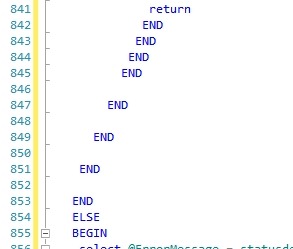
Output parameters, 1500+ lines of sql, or a block that looks like this:

BadSqlEnds

Yeah, that’s a pretty good indicator for me. There are several other code smells. You know them. That’s why we are talking here.

Getting started – create a logging table

Something simple like this works for my logging table:

CREATE TABLE dbo.SqlrefactoringLog (
id INT IDENTITY (1,1) PRIMARY KEY,
LogMessage VARCHAR(250),
InsertDate DATETIME2
)

You can add other columns if you need but this suffices for what I am up to.

In each sql logic block of your large stored procedure, add an insert to your new log table to let you know that you have made into that flow:

INSERT INTO dbo.SqlrefactoringLog ( LogMessage, InsertDate ) VALUES  ( ‘block1’,GETDATE())

Once you have an insert in each sql block, 14 blocks in my current case, you will be able to make sure that the integration tests you are about to write exercise each one.

Using an ORM to help you

In the work that I am doing now, I an using Entity Framework or NHibernate. Any ORM that you can make work do fine for this. We will be using the objects to populate test data to ensure that we hit all the logic paths that the proc allows for. Using an ORM  will speed this up greatly. There is no reason to create all the table objects and write CRUD for them from scratch. Lets use computers to do this…

Get a list of all the tables in your personal procedure of doom (POD)

Feed the list of all the tables in your proc to your ORM of choice and get started. In my case, I have 21 tables (really) across two different databases to test against.

Now for the tedium

You have to understand this awful procedure to get rid of it. Sorry. To understand it, you will have to exercise each bit of it in a test. Using your new lovely ORMified objects, populate test data and call your proc. Watch your log table, remember him – Sqlrefactoringlog. Keep doing this until you know that you are exercising every code path in your proc with an automated test. Once you are seeing an entry in your log table for every code path, you can have some chance of working on the procedure without introducing regressions.

Get NUnit into the mix

Once you are exercising all the paths, start capturing the results or outputs of your stored procedure in individual unit tests classes. At a minimum, you will have one test for each code path. I find I often end up with ~3 tests for each code path. You have to think carefully through each one. NUnit, or any automated test framework you know becomes invaluable here.

Get outta sql

Ah, if you made it this far, give yourself a pat on the back. You can get out of sql and starting writing code in the language of your choice.

The Important bit – Gleefully (but carefully) tear it apart

You are going to be replacing this proc with a new library and ORM code or several/many new smaller stored procedures with only CRUD in them. That is the goal anyway. Nothing other than

Wrap the ouput/results of the proc in an object. For me that is a plain old c# object – a property bag in my case. Use this populated object as the expected result for your unit tests. Comment out a sql block and replace its logic in code. If you require a data hit, write a new small proc or use your lovely ORM doing only CRUD to replace that first bit. Start with an easy one if you can – it builds confidence.

Rinse Wash and Repeat

Run all your tests and make sure that they still pass. If they don’t – work on your non-sql code until they do. That’s it. Keep going until the proc is gone. Run your tests every time you make a change. Never skip this step. In one of these large complex beasts, not knowing how many steps ago you broke will cause much weeping and gnashing of teeth. Check in to source control each time you successfully remove a block.

Happy Coding,

Jim